
Wi-Fi 7 is fast on paper, but the thing you actually feel in calls and gaming isn’t maximum speed. It’s stability: low ping that doesn’t spike, consistent packet delivery, and fewer “micro-freezes” when the network gets busy. In 2026, many people have Wi-Fi 7 or Wi-Fi 6E routers already, yet they still deal with choppy voice, video call stutter, and games that feel fine for five minutes and then suddenly rubber-band. The frustrating part is that these issues often persist even when speed tests look great. That’s because speed tests measure throughput in a short burst, while calls and games are sensitive to latency, jitter, and packet loss over time. The lifehack is tuning the network path you already have. You adjust adapter settings on the PC so it behaves predictably, you choose the right band and channel behavior on the router, and you prioritize real-time traffic so a big download doesn’t ruin your call. Then you prove the improvement by measuring ping and packet loss before and after using the same test method. Most stability gains come from small, boring changes: better band choice, saner roaming behavior, less interference, and QoS that actually targets your device. You don’t need new hardware to feel a big difference—you need the network to stop “surprising” you.
PC adapter tuning for stable latency: drivers, power settings, and stopping the “random sleep” behavior
On a PC, the Wi-Fi adapter can cause instability even if the router is perfect. The lifehack is treating the adapter like a performance component. Start with drivers. Wi-Fi drivers often include fixes for roaming behavior, power saving quirks, and latency spikes under load. Update the adapter driver from a reliable source rather than relying only on whatever was installed months ago. Next, power behavior. Many PCs try to save energy by letting the Wi-Fi adapter enter lower-power states, and that can introduce short wake delays that feel like jitter in calls or gaming. Adjust your power profile so the adapter isn’t aggressively power-throttled while you’re on AC power, and avoid “maximum power saving” modes for the adapter if you care about consistency. Another hidden stabilizer is advanced adapter settings. Some adapters allow you to choose aggressiveness of roaming, preferred band, and channel width behavior. For a stationary desktop or a laptop that stays in one room, less roaming aggressiveness often improves stability because the adapter stops hunting for “better” networks mid-session. For a laptop that moves around, roaming can help, but too aggressive roaming can create drops. The goal is predictable behavior: stick to one good access point, don’t power-sleep the radio constantly, and don’t constantly renegotiate link parameters during a call. Finally, keep Bluetooth interference in mind if you use a combined Wi-Fi/Bluetooth module. Heavy Bluetooth usage can reduce performance on certain bands. If you notice spikes when using wireless headphones, test stability with Bluetooth off once to see if it’s contributing.
Router tuning that targets stability: band choice, channel width, and interference control instead of chasing max throughput
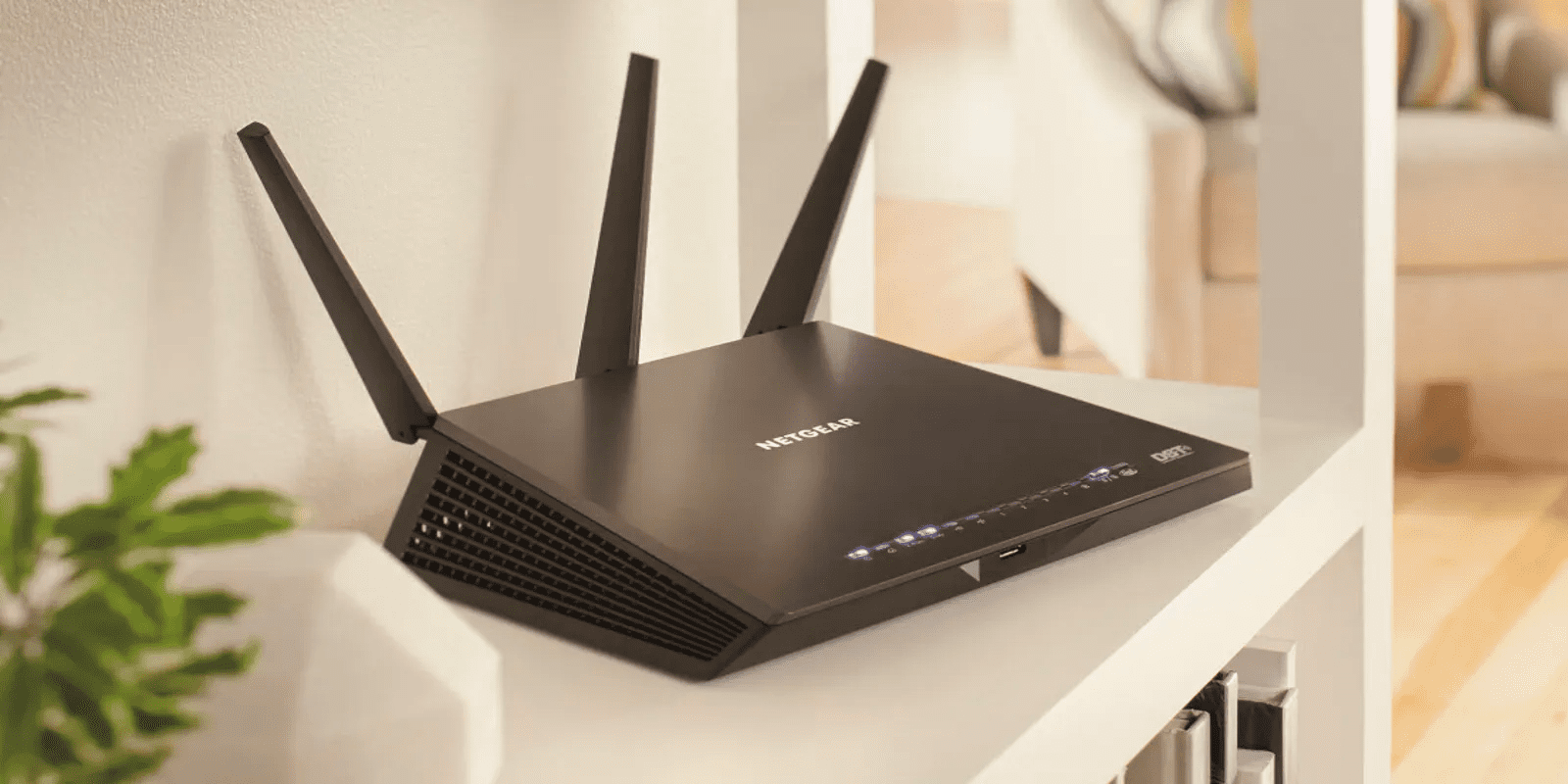
Wi-Fi 7 introduces more capability, but more capability also means more ways for the network to behave differently moment to moment. The lifehack is optimizing for stable latency rather than peak speed. Band choice matters. If you have access to 6 GHz, it can be excellent for low interference and stable performance at short range, but it has less penetration through walls. If your PC is far from the router or behind multiple walls, 6 GHz may fluctuate more than 5 GHz because the signal is weaker. In that case, a solid 5 GHz connection can be more stable even if it’s slightly slower. For 2.4 GHz, it’s usually best reserved for long-range stability or smart devices, not gaming and calls, because it’s often crowded. Channel width is another lever. Wider channels can boost peak speed, but they can also increase sensitivity to interference and cause more variability. For stability, sometimes a slightly narrower channel width produces smoother latency because the connection is less “fragile” in a noisy environment. Router placement is the underrated stability hack. If the router is hidden behind a TV, inside a cabinet, or close to other electronics, you’re inviting interference and inconsistent signal. Place it higher, more open, and away from dense metal and thick walls when possible. Also consider network separation. If your router uses one combined network name for multiple bands, your PC might occasionally roam between bands depending on signal changes, which can cause momentary hiccups. Using separate SSIDs for bands or forcing your gaming/work PC onto a specific band can improve consistency. The goal is one stable link path that doesn’t change its mind mid-session.
Traffic priority that actually helps: QoS basics, device prioritization, and proving improvement with ping and packet loss tests
Even a great Wi-Fi link can feel bad if your network is busy and your router doesn’t prioritize real-time traffic. The lifehack is using QoS or traffic priority features in a simple way. You don’t need complex rules; you need your call and gaming device to be treated as “latency-sensitive” when the network is under load. If your router supports device prioritization, set your PC (or console) and your main call device as high priority. This helps prevent a large download, cloud backup, or streaming session from introducing latency spikes. Another practical move is managing upload saturation. Many people focus on download speed, but upload congestion is what often wrecks calls because voice and video need steady upstream. If someone in the house is uploading big files or backing up photos, your call can become choppy even if download looks fine. QoS can help, but you can also schedule heavy uploads outside call hours or cap them if your router supports it. Then verify the result with measurement, not vibes. Do a before-and-after test using the same method: measure ping to a stable target, watch for spikes, and track packet loss. Do it while the network is idle and while the network is busy, because the real value of QoS appears under load. A simple stress test is running a download or upload on another device while you monitor ping and loss on your PC. If tuning worked, spikes should be smaller and less frequent, and packet loss should drop. In 2026, Wi-Fi 7 stability is about reducing surprises. Tune the adapter so it stays awake and steady, tune the router so it favors stable bands and sane widths, and prioritize real-time traffic so calls and games stay smooth even when the rest of the house is online.